
“How to change your Canva billing method” should not be such a common search phrase, but it is. The thing is, hanging your Canva billing method takes just a few minutes. Go to your account settings, open Billing, and update your payment details. It’s that simple.
But here’s the catch: updating your card doesn’t always fix a failed payment. If your local bank card can’t handle international or recurring USD charges, the problem isn’t Canva. It’s the card.
Good news first: changing your payment method will not cancel your Canva Pro or Canva Teams subscription. Your designs, templates, and team access all stay exactly as they are.
This guide covers three things:
- How to update your Canva billing method, step by step
- Why Canva payments fail, even after you’ve added a new card
- How to fix the problem for good, so your subscription never lapses
Quick Answer
How to change your Canva billing method:
- Log into Canva on a web browser (not the mobile app)
- Go to Account Settings → Billing
- Select your active plan
- Click Update Payment Method
- Enter your new card details and save
- Still failing? Use a virtual dollar card that supports international recurring payments, like EverTry
How to Change Your Canva Billing Method (Step-by-Step)
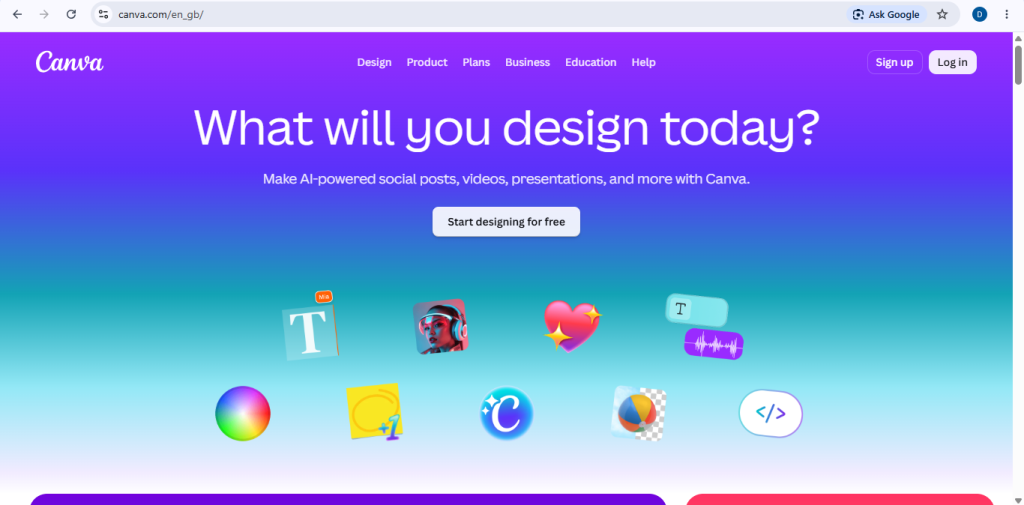
Step 1: Sign in to Canva
Open Canva in your browser and log in with your usual email and password.
Step 2: Open Billing
Click your profile icon in the top-right corner. Select Settings, then Billing (some accounts show this as “Billing & Plans”).
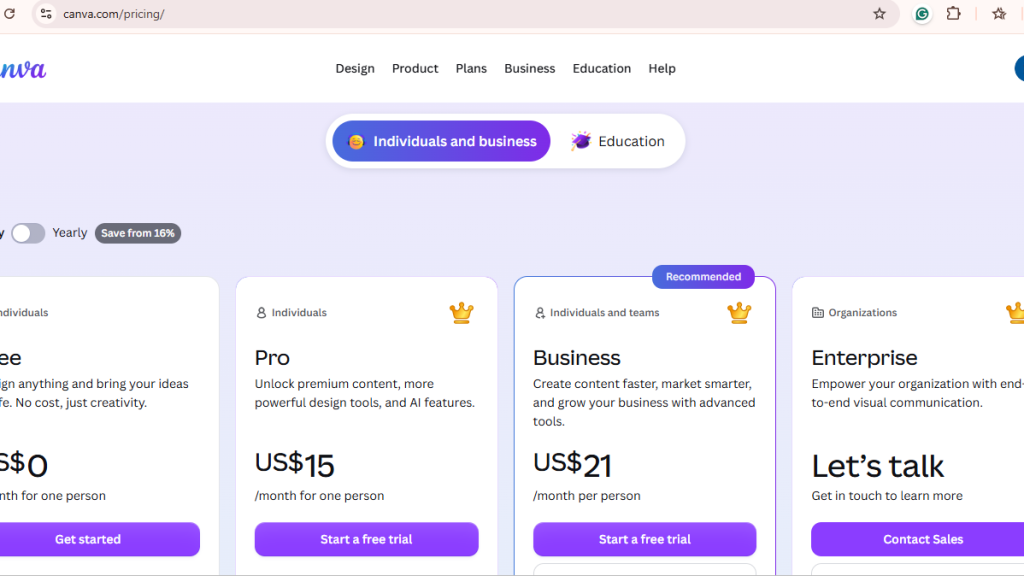
Step 3: Select your active subscription
Find your current plan, whether it’s Canva Pro or Canva Teams.
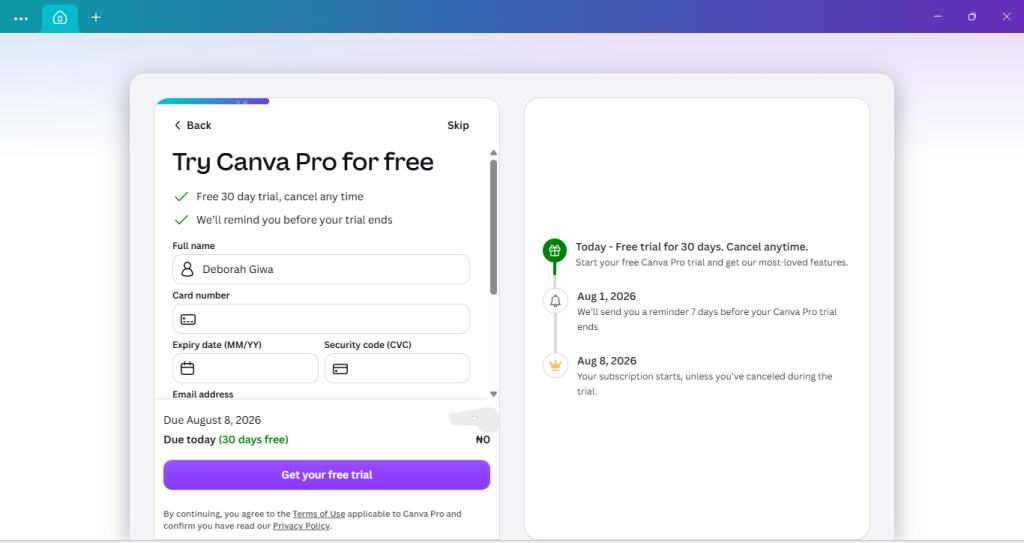
Step 4: Update your payment method
Click the three-dot menu next to your plan. Choose Update Payment Method. Enter your card details, or connect PayPal if it’s available in your region.
Step 5: Save your changes
Click Save. Canva will confirm the update.
Step 6: Check your renewal date
Go back to your Billing page. Confirm your next renewal date and make sure your new payment method is active before then.
Where to Find Canva Billing Settings
You can only manage your payment method from a web browser, on desktop or mobile. The Canva app itself doesn’t support this.
If you subscribed through Apple or Google, this guide won’t apply to you. Those subscriptions are managed outside Canva.
Quick tip: If you signed up through the App Store or Google Play, update your payment method in your Apple ID or Google Play account instead. Canva has no control over those charges.
Why Your Canva Payment May Still Fail After Updating Your Billing Method
This is the part most guides skip. You update your card. You save your changes. Then Canva still can’t charge you. Here’s why that happens.
Your card has expired: This one’s easy. Just add a new card, and updating your billing method fixes it completely.
Your bank blocks international transactions: Many local bank cards are set up for domestic spending only. Canva charges in USD, so the transaction gets rejected before it even reaches your bank.
Your card doesn’t support recurring billing: Some cards, especially prepaid or virtual ones, are built for one-time payments. Canva needs to charge your card automatically every month or year. If your card can’t do that, every renewal will fail.
There’s a currency mismatch: If your card is issued in Naira, Cedis, Kenyan Shillings, or some other country’s currency, and Canva bills in US dollars, your bank may decline the charge automatically.
A temporary authorization hold is in place: Sometimes your bank puts a short hold on new international charges while it verifies the transaction. This can look like a decline, even when it isn’t one.
Your bank flags it as fraud: Banks often block unfamiliar international, recurring charges as a fraud precaution. This is common with subscriptions billed from outside your home country.
You don’t have enough balance: Straightforward: if there isn’t enough money in the account, the payment won’t go through.
Here’s a quick summary:
| Problem | Does updating billing help? | Real fix |
|---|---|---|
| Expired card | Yes | Add a new card |
| International transactions blocked | No | Use a card built for international payments |
| Recurring billing not supported | No | Use a compatible virtual dollar card |
| Insufficient balance | Yes | Fund your account |
| Flagged as fraud | Sometimes | Contact your bank, or use another card |
What Payment Methods Does Canva Accept?
Canva accepts most major international payment options, including:
- Visa
- Mastercard
- PayPal
- Apple Pay (where available)
- Google Pay (where available)
Availability depends on your region. But accepting a card type isn’t the same as your card working. Even a Visa or Mastercard can fail if your bank blocks international or recurring charges.
Quick answer: Canva supports most major cards and PayPal. Whether your specific card works depends on your bank, not on Canva.
How to Pay for Canva Pro When Your Local Card Doesn’t Work
Here’s a pattern we see often: someone updates their Canva billing method, adds a new card, and the payment still fails. Every time.
That’s usually not a Canva problem. It’s a card problem. Your bank simply isn’t set up for international, recurring USD payments.
One practical fix is a virtual dollar card, like the one EverTry offers. It’s built for exactly this kind of payment. Here’s how it works:
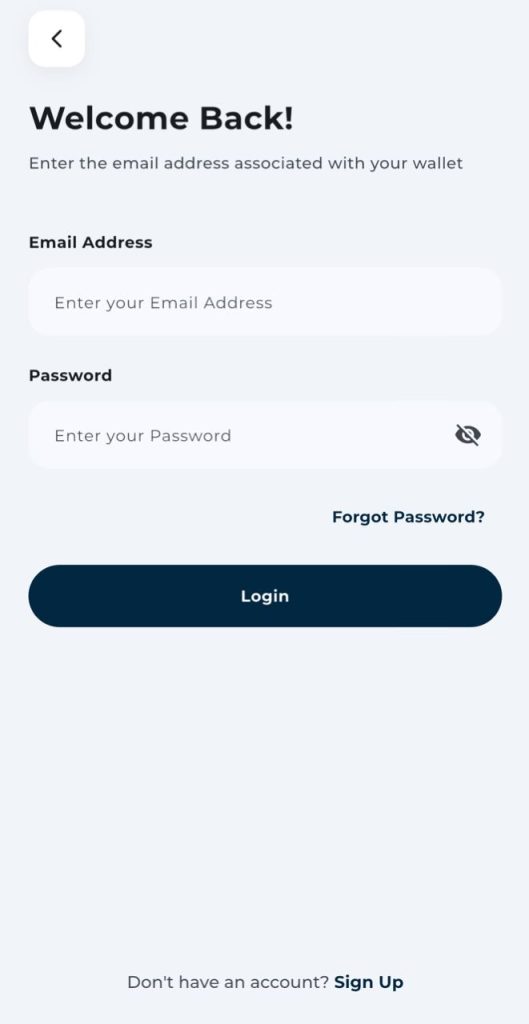
Step 1: Create an EverTry account
Sign up with your email and basic details. This takes a couple of minutes.
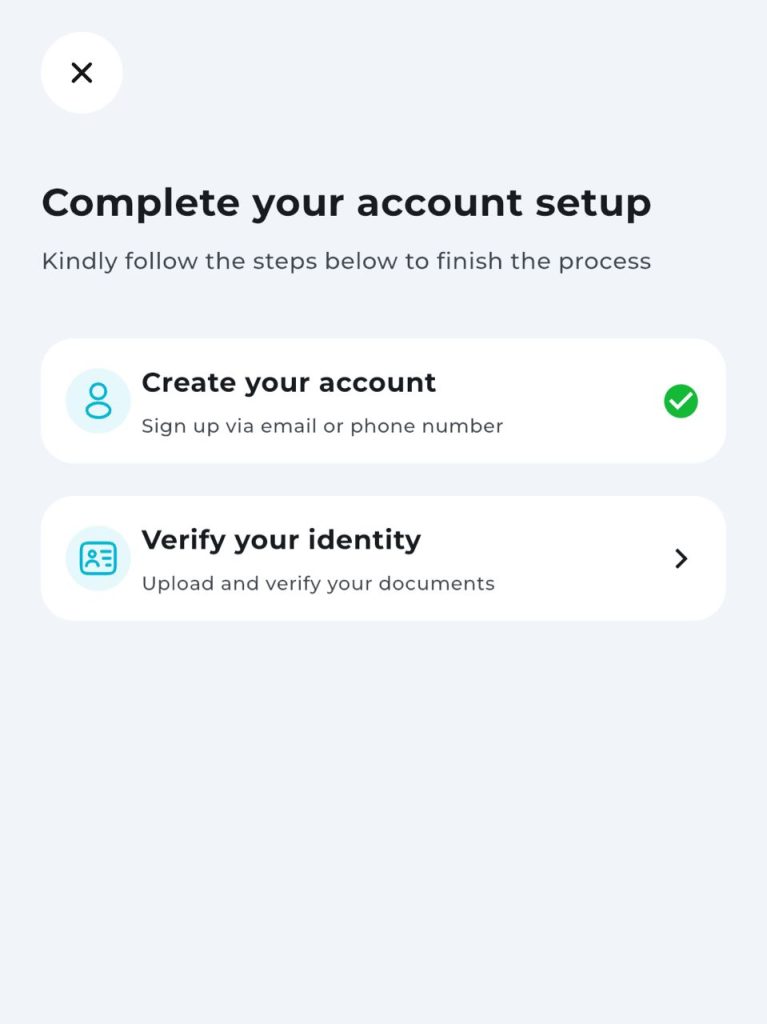
Step 2: Complete KYC
Verify your identity. This is a standard step for any regulated financial product, and it protects your account.
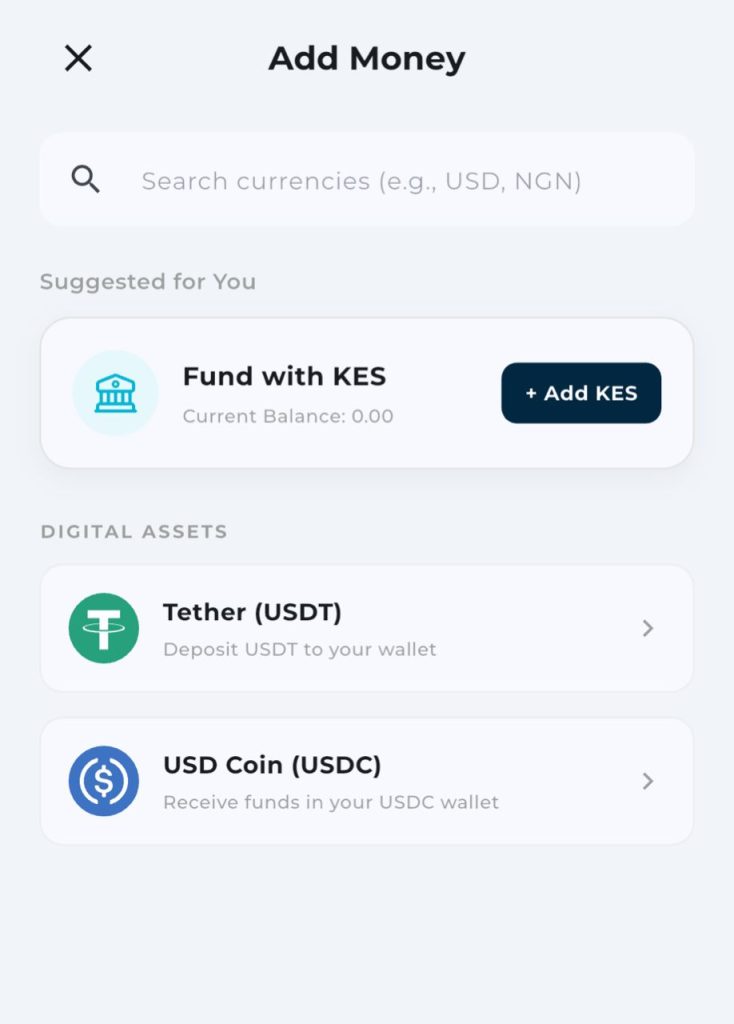
Step 3: Fund your wallet
Add money using local currency, or fund it directly with USDT or USDC.
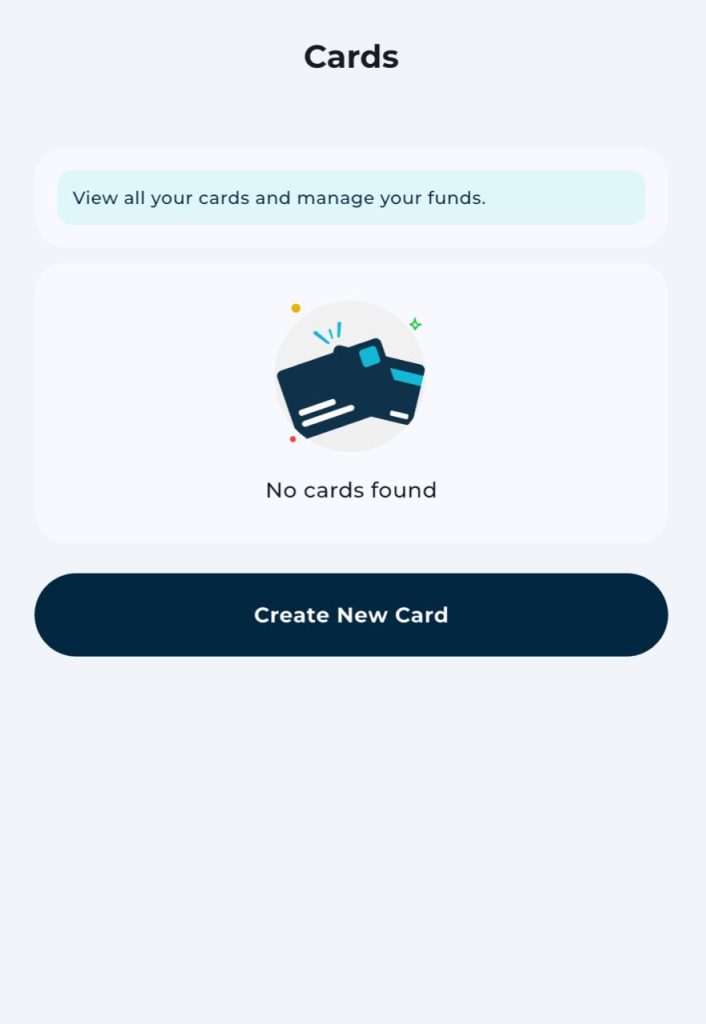
Step 4: Generate a virtual dollar card
Create your card instantly inside the app.
Step 5: Add the card to Canva
Go back to Canva’s Billing page and add your new virtual dollar card as your payment method.
EverTry isn’t the only option here. Other virtual card providers, serve a similar purpose. The right choice depends on your country, your currency, and your existing setup.
How to Update Canva Teams Billing
Team billing works a little differently.
- Only Team Owners and Team Administrators can update the team’s payment method.
- A team can save up to three payment methods at once.
- Admins can choose whether members are allowed to use the team’s saved card, or whether each member needs their own.
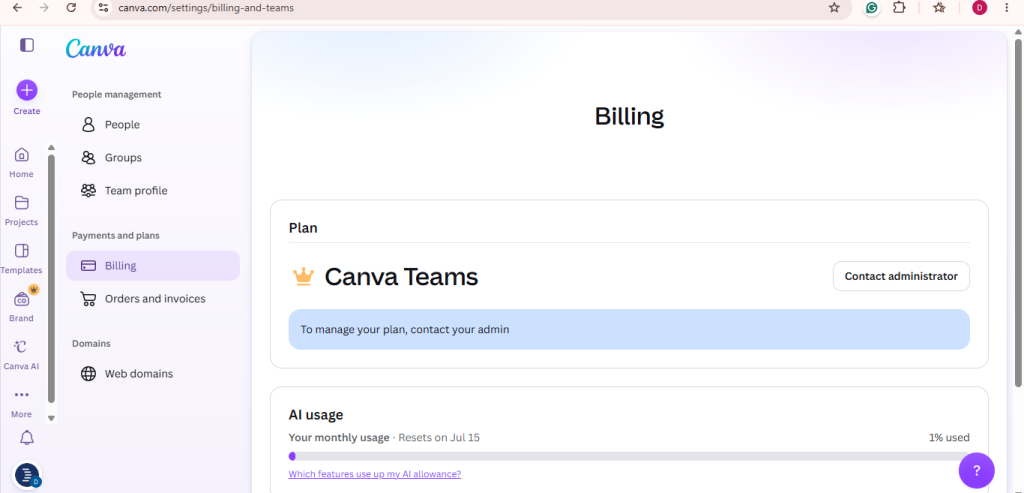
If you’re on a team and can’t find the billing option, you likely don’t have admin permissions. Ask your Team Owner to make the change, or to grant you access.
Can You Change Your Canva Billing Address or Country?
Yes. Go to your Billing page and look for Billing Details. Select Add or Update to change your name, address, or tax information.
A few things to know:
- Updating your billing address only affects future invoices. Past invoices stay unchanged.
- Your subscription keeps running normally. Changing your address doesn’t pause or cancel anything.
- Your new address may change the tax rate applied to future charges.
Updating your billing address affects future invoices only.
Common Canva Billing Errors (and How to Fix Them)
| Error | Cause | Solution |
|---|---|---|
| Payment Declined | Bank restriction | Try a different, internationally-enabled card |
| Card Expired | Old payment details | Add a new card |
| Authentication Failed | 3D Secure verification issue | Retry the payment, or contact your bank |
| Insufficient Funds | Balance too low | Fund your account before retrying |
| Payment Could Not Be Processed | Card type not supported | Switch to a different payment method |
Best Practices to Avoid Future Canva Billing Problems
- Replace expired cards a few days before renewal, not after
- Keep enough balance on your card or wallet before your billing date
- Confirm your card supports international transactions
- Use a payment method built for recurring subscriptions
- Check your renewal date every few months
- Turn on billing notifications, so you’re not caught off guard
Frequently Asked Questions
Can I change my Canva payment method without cancelling Canva Pro?
Yes. Updating your payment method has no effect on your active subscription.
Will changing my Canva billing method affect my designs?
No. Your designs, folders, and templates stay exactly as they are.
Why was my Canva payment declined?
Usually one of a few reasons: an expired card, an international transaction block, a currency mismatch, or a bank fraud flag.
Can I use a virtual dollar card for Canva?
Yes. A virtual dollar card, like the one from EverTry, is built to handle international, recurring USD charges like a Canva subscription.
Does Canva accept Visa and Mastercard?
Yes, both are accepted, subject to your bank’s own restrictions.
Can I pay for Canva with PayPal?
Yes, if PayPal is supported in your region.
How do I update billing for Canva Teams?
Only Team Owners or Admins can do this, from the team’s Billing settings.
Can I change my Canva billing address?
Yes, from the Billing Details section of your account. It only affects future invoices.
Can I change my Canva billing country?
Yes, through the same Billing Details section, alongside your address.
Why is Canva charging my old card?
Canva may still be set to your previously saved card if the new one wasn’t marked as primary. Double-check your Billing page to confirm which card is active.
Can I have multiple payment methods saved?
Yes. Individuals and teams can save up to three, though only one is active at a time.
Does Canva place a temporary authorization hold?
Sometimes. Banks often place a short hold to verify a new international charge. This can look like a failed payment, even when it isn’t.
Final Thoughts
Changing your Canva billing method is simple. But it doesn’t always solve the real problem.
If your local bank card isn’t built for international, recurring USD payments, adding a new card won’t help. You’ll be stuck in the same loop at your next renewal.
For readers who keep running into this wall, a virtual dollar card, like EverTry, is one practical way to get a card that just works with Canva. It’s not the only option, but it’s built for exactly this kind of payment.
This article is for informational purposes only and is based on publicly available information and our experience with online subscription payments at the time of writing. Canva’s billing interface, supported payment methods, and policies may change without notice. EverTry is an independent payment solution and is not affiliated with, endorsed by, or sponsored by Canva. Always refer to Canva’s official Help Center for the latest billing instructions and verify any payment details before making changes to your subscription.
Deborah Giwa is a Marketing Associate at EverTry, where she works on content and growth initiatives focused on helping users navigate international payments. She is passionate about simplifying access to global financial tools for people in emerging markets through clear, practical, and user-focused content.