To create a Google Play Developer account in Kenya, sign in to the Google Play Console with your Google account, choose an Individual or Organization account, complete your developer profile, pay the one-time $25 registration fee with a supported card, submit your identity documents for verification, and wait for approval before publishing apps.
Yes, Kenya is fully supported. You don’t need a foreign address, a foreign bank account, or a registered company to publish on Google Play. What you do need is the right documents, a card that can complete a $25 USD charge, and details that match across everything you submit. This guide walks you through all of it, including the parts that trip most people up: payment declines and identity verification.
Here’s the process at a glance:
- Create or sign in to your Google Account.
- Open Google Play Console.
- Choose Individual or Organization.
- Complete your developer profile.
- Accept Google’s Developer Distribution Agreement.
- Pay the $25 registration fee.
- Verify your identity.
- Wait for approval.
- Publish your app.
Quick Requirements Checklist
Gather everything below before you start. Registration goes much faster, and verification fails far less often, when your details are consistent from the first screen.
Google Account
Any personal Google account works for an Individual developer account. If you’re registering an Organization account, use a Google account tied to your business email rather than a personal one; it keeps ownership clean if your team grows.
Developer Registration Fee
Google charges a one-time fee of $25 USD (as of July 2026). It is not an annual subscription, and it is non-refundable, even if your identity verification later fails. That’s roughly KES 3,200–3,300 depending on the exchange rate, though your card will be charged in dollars.
Identity Documents
Individual accounts:
- Kenyan National ID, or
- Passport, or
- Driver’s licence
Organization accounts:
- Certificate of Incorporation or Business Name registration from the Business Registration Service (BRS)
- The authorized representative’s government-issued ID
- A D-U-N-S number (more on this below)
Proof of Address
Google may ask for a document showing your name and address, such as:
- A utility bill (electricity, water, internet)
- A bank or SACCO statement
The name on this document must match the name on your ID.
Before you start, you should have: a Google account, a card that supports international USD payments, your ID, a proof of address document, and for companies, your BRS certificate and D-U-N-S number.
Can You Create a Google Play Developer Account in Kenya?
Yes. Kenya is on Google’s list of supported registration countries. Kenyan developers can:
- Register directly from Kenya with Kenyan documents
- Publish apps to the Play Store globally, not just locally
- Earn from paid apps and in-app purchases through a Google Payments merchant profile
There is no need to register through another country, borrow a relative’s foreign address, or use an agency abroad. In fact, doing so is risky: if the country on your payments profile doesn’t match your ID documents, verification is likely to fail, and the $25 won’t come back.
Individual vs Organization Account
Google asks you to choose an account type at the start, and the choice affects your documents, your verification process, and how your apps can be released.
Individual Account
Who it’s for: solo developers, freelancers, students, and hobbyists publishing under their own name.
Pros: simpler verification (just your personal ID), faster setup, no business documents needed.
Cons: subject to Google’s closed testing requirement before public release (explained below), and your apps are tied to you personally rather than a company.
Organization Account
Who it’s for: registered businesses, startups, and agencies publishing apps for clients.
Pros: apps belong to the business, easier team access management, no closed testing requirement for new apps, more credible for enterprise or fintech products.
Cons: requires business registration documents and a D-U-N-S number, which takes time to obtain.
Do You Need a D-U-N-S Number?
If you’re registering an Organization account, yes. A D-U-N-S number is a unique nine-digit business identifier issued by Dun & Bradstreet, and Google uses it to confirm your company actually exists.
Getting one is free, but it can take up to 30 days to be issued. If you’re planning an Organization account, apply for your D-U-N-S number on the Dun & Bradstreet website before you begin Play Console registration, it’s the single most common cause of delayed business registrations.
Individual accounts do not need a D-U-N-S number.
| Feature | Individual | Organization |
|---|---|---|
| Documents needed | Government ID | BRS certificate + rep’s ID |
| D-U-N-S number | Not required | Required |
| Closed testing before release | Required | Not required |
| Best for | Solo devs, students, freelancers | Companies, startups, agencies |
| Setup speed | Faster | Slower (D-U-N-S wait) |
The New Closed Testing Requirement
If you register an Individual account, Google now requires your first apps to pass closed testing before they can go live: at least 12 testers must be opted in to your test track continuously for 14 days.
Google introduced this to raise app quality and cut down on low-effort or fraudulent apps from newly created personal accounts. It only affects Individual accounts — Organization accounts can release directly.
Common mistakes to avoid:
- Recruiting fewer than 12 testers, or having some drop out mid-window (the 14-day clock depends on continuous opt-in)
- Waiting until the app is finished to look for testers
- Assuming the requirement doesn’t apply because the app is free
💡 Expert tip: Line up your 12 testers, classmates, colleagues, a developer WhatsApp or Telegram group, before you submit your app. Testers only need an Android phone and a Google account.
Step-by-Step: How to Create Your Google Play Developer Account
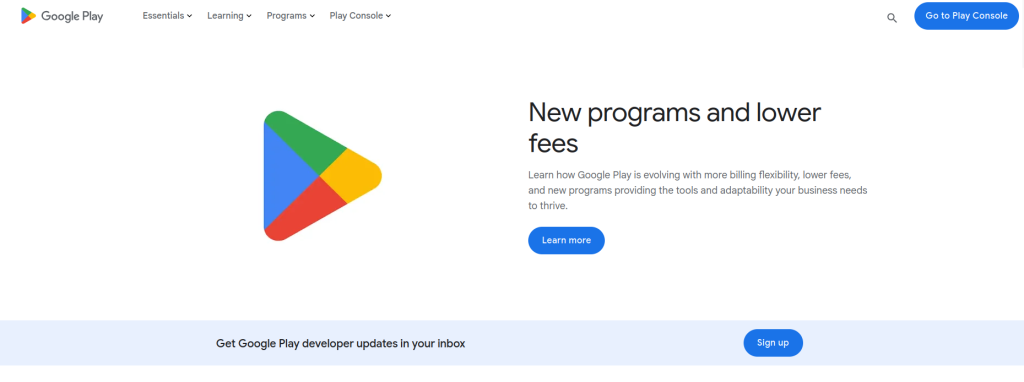
Step 1: Visit Google Play Console
Go to play.google.com/console in your browser. This is the dashboard you’ll use for everything from registration to publishing.
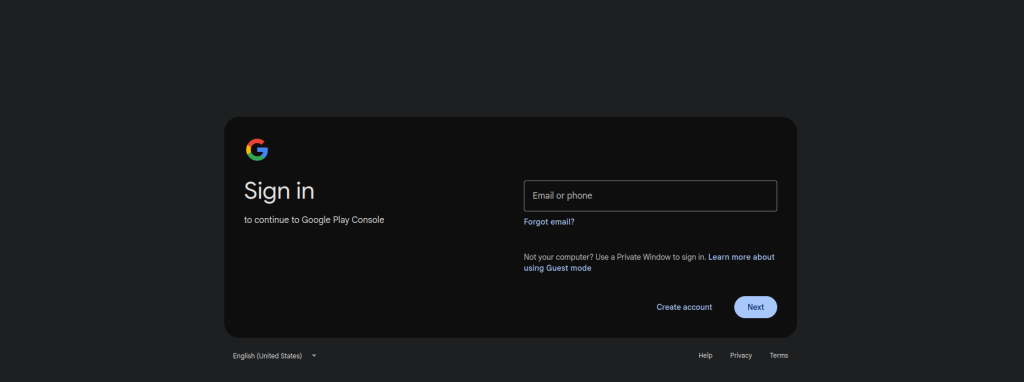
Step 2: Sign In
Sign in with the Google account you want permanently tied to your developer identity. Changing it later is difficult, so choose deliberately.
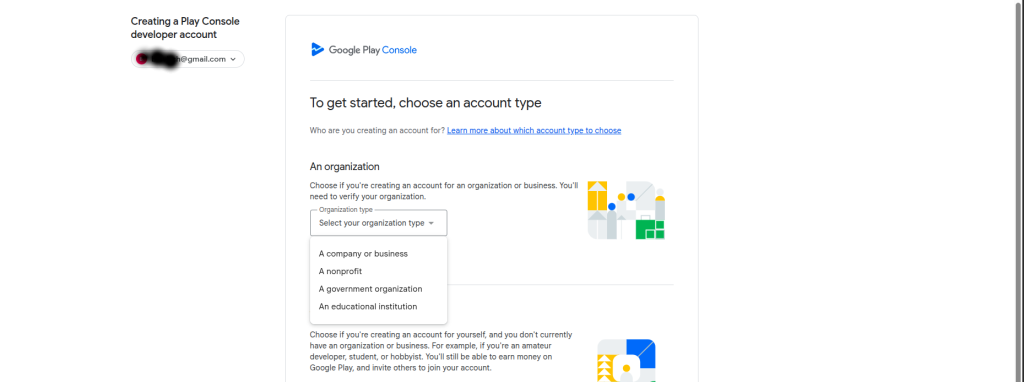
Step 3: Choose Your Account Type
Select Yourself (Individual) or an organization. Refer to the comparison above; this choice determines your document requirements.
Step 4: Enter Your Developer Details
You’ll provide:
- Developer name: publicly visible on the Play Store. Your real name, a pen name, or your company name.
- Contact email and phone number: both are verified by code, so use ones you can access immediately.
- About you: a short section on your development experience and what you plan to publish. Answer honestly; it doesn’t need to be impressive.
Step 5: Accept the Agreement
Read and accept the Google Play Developer Distribution Agreement. This is the contract governing how you publish and monetize apps.
Step 6: Pay the $25 Registration Fee
Enter your card details and complete the one-time $25 USD charge. This is where most Kenyan registrations stall; the full payment section below covers your options and what to do if the card is declined.
Step 7: Identity Verification
Upload clear photos of your ID (front and back), your proof of address, and in some cases, a selfie. The name on your ID, your payments profile, and your card should all match exactly.
Step 8: Approval
You’ll see “Identity verification in progress” while Google reviews your documents. Once approved, your Play Console dashboard will be fully unlocked, and you can create your first app.
Registration flow: Requirements → Registration → Payment → Verification → Approval → Publish
How to Pay the Google Play Developer Registration Fee in Kenya
How Much Does It Cost?
$25 USD, one-time (as of July 2026). No renewal, no annual fee. Compare that with Apple’s developer program, which charges $99 every year.
Which Cards Does Google Accept?
Google accepts:
- Visa
- Mastercard
- American Express
The card must support international online transactions billed in USD. This is the requirement that many Kenyan debit cards fail to meet, not because the card is invalid, but because international or online payments are disabled by default as a fraud-prevention measure.
Can You Pay with M-PESA?
Not directly. Google’s registration checkout doesn’t accept mobile money.
The indirect route is M-PESA GlobalPay, a virtual Visa card funded from your M-PESA balance. Because it’s a Visa card, Google’s checkout can accept it. Limitations to know: it’s only available to Safaricom lines, activation involves a separate opt-in, and like any card, the transaction can still be declined if the billing name or address doesn’t match your Google payments profile.
Can You Use a Virtual Dollar Card?
Yes. A virtual dollar card is a digitally issued Visa or Mastercard denominated in USD, designed specifically for international online payments. Kenyan developers commonly use them for exactly this category of charge: developer accounts, cloud services, and software subscriptions because they remove the “international transactions disabled” problem entirely: the card is built for international payments from the start.
One Option If Your Local Card Doesn’t Work
If your bank card keeps failing the $25 charge, an EverTry virtual dollar card is one option many Kenyan developers use for international online payments. You can create a card in under 15 minutes and fund it with KES, USDT, or USDC, then use it at Google’s checkout like any other Visa or Mastercard.
The same card works for other developer services where supported: Google Cloud, GitHub, AWS, DigitalOcean, OpenAI, and similar platforms, so it’s worth setting up once if you expect more USD payments beyond the registration fee. Fund it with just the amount you need; there’s no mandate on your main bank account.
| Payment method | Accepted by Google? | Notes |
|---|---|---|
| Kenyan bank card (Visa/Mastercard) | Yes, if international payments are enabled | Call your bank to enable; can take days |
| M-PESA GlobalPay virtual Visa | Yes | Safaricom lines only; fund from M-PESA balance |
| Virtual dollar card | Yes | Built for USD payments; fund with KES or stablecoins |
| M-PESA directly | No | Mobile money isn’t accepted at registration checkout |
Why Google Play Payments Fail
If your $25 payment is declined, work through these causes in order; they account for nearly all failures.
Card Declined by the Bank
Your bank blocked the charge, usually because international transactions are off or the merchant category was flagged. Fix: contact your bank and ask them to enable international online payments, then retry once.
Billing Address Doesn’t Match
The address you typed at checkout must match the address your card issuer has on file. A mismatched postal code alone can cause a decline.
Payments Profile Problems
Your Google Payments profile country must be Kenya, and the profile name must be your legal name as it appears on your ID. Fixing a wrong-country profile usually means creating a new one; you can’t simply edit the country.
International Transactions Disabled
The single most common cause for Kenyan cards. The card works at the supermarket but fails on any foreign USD charge. Enable international payments via your banking app or customer care.
Insufficient Funds
Remember the charge is in USD; your account needs enough to cover $25 plus your bank’s currency conversion margin. Keep a small buffer.
Name Doesn’t Match Your ID
If the cardholder name, payments profile name, and ID name don’t align, the payment may go through, but verification will fail later, and the fee is non-refundable. Fix mismatches before paying, not after.
⚠️ Warning: Don’t retry a declined card repeatedly. Multiple rapid attempts can trigger fraud flags on both your bank account and your Google payments profile. Diagnose first, fix the cause, then retry once.
Troubleshooting flow: Card declined → Read the error → Billing address correct? → International payments enabled? → Card type supported? → If still failing, switch to a different payment method from the table above.
Identity Verification Explained
Documents Google Accepts
For Kenyan individuals: National ID, passport, or driver’s licence. Photos must be clear, uncropped, glare-free, and show the full document, front and back for the National ID.
Selfie Verification
In some cases, Google asks for a selfie to match against your ID photo. Take it in good lighting, without a hat or glasses, and follow the on-screen framing guide.
Proof of Address
A utility bill or bank statement in your name, generally recent (within the last few months). The address should match what you entered in your payments profile.
How Long Verification Takes
With clean, matching documents: a few hours to about two business days. Mismatched details, blurry photos, or profile inconsistencies push this to a week or more or end in rejection.
Common Reasons Verification Fails
- Name spelled differently across ID, payments profile, and card
- Expired documents
- Cropped or blurry photos
- Payments profile country set to the wrong country
- Proof of address in someone else’s name
💡 Expert tip: Before uploading anything, write your legal name exactly as it appears on your ID, then check it character-for-character against your payments profile and cardholder name. Ninety seconds of checking saves a two-week resubmission cycle.
What’s Changing in Google’s Developer Verification (2026–2027)
Google is extending developer verification beyond the Play Store to all app distribution on certified Android devices, including sideloaded APKs and third-party stores.
Key dates:
- March 2026: the new Android Developer Console opens to all developers for identity verification and app registration.
- September 2026: enforcement begins in the first four countries (Brazil, Indonesia, Singapore, Thailand).
- Through 2027: the requirement expands globally, which will include Kenya.
The good news for Play developers: if your Play Console account is already verified, you’re largely covered. Google says around 98% of existing Play apps are auto-registered using information developers have already provided. Practically, this means verifying properly now with accurate, matching documents is an investment. The requirement is only getting stricter, and a cleanly verified account today saves you from repeating the process later.
What Happens After Your Account Is Approved?
Once your dashboard unlocks:
- Create your app in the Play Console and set its name, language, and category. Play automatically registers your package name to your account.
- Upload your APK/AAB. Google now requires the Android App Bundle (.aab) format for new apps.
- Complete your store listing: description, screenshots, feature graphic, content rating questionnaire, privacy policy link.
- Run closed testing (Individual accounts): 12 testers, 14 days, then apply for production access.
- Release to production and roll out to the countries you choose.
Common Mistakes Kenyan Developers Make
- Uploading a cropped or blurry photo of the National ID
- Paying with a card that has international transactions disabled, then retrying repeatedly
- Entering a billing address that doesn’t match the bank’s records
- Choosing Organization without a D-U-N-S number in hand, then waiting 30 days
- Choosing Individual for a client’s business app that should belong to an Organization account
- Ignoring the closed testing requirement and losing two weeks scrambling for testers
- Using different name spellings across ID, card, and payments profile
Frequently Asked Questions
How much does a Google Play Developer account cost?
$25 USD, paid once at registration (as of July 2026). There are no renewal or annual fees.
Is a Google Play Developer account free?
No. The $25 registration fee is mandatory and non-refundable. Anyone offering a “free developer account” is either sharing access to someone else’s account (against Google’s terms) or reselling; avoid both.
Can Kenyans register a Google Play Developer account?
Yes. Kenya is a supported country, and Kenyan IDs, passports, and driver’s licences are accepted for verification.
Can I pay using M-PESA?
Not directly. The workaround is M-PESA GlobalPay, which gives you a virtual Visa card funded from your M-PESA balance that Google’s checkout can accept.
Can I use a virtual dollar card?
Yes. Virtual Visa and Mastercard dollar cards are accepted like any other card, and they avoid the international-transaction blocks common on local debit cards.
Do I need a D-U-N-S number?
Only for Organization accounts. It’s free from Dun & Bradstreet but can take up to 30 days, so apply early. Individual accounts don’t need one.
Why was my payment declined?
Usually one of four things: international transactions disabled on your card, a billing address mismatch, a name mismatch with your payments profile, or a card type Google doesn’t accept. Work through the troubleshooting section above before retrying.
How long does verification take?
A few hours to about two business days with clean documents. Mismatches and resubmissions can stretch it to a week or more.
Can I create an account without Gmail?
You need a Google account, but it doesn’t have to be a @gmail.com address; you can create a Google account using an existing email, including a custom business domain.
What happens if verification fails?
Google tells you which check failed and usually allows resubmission with corrected documents. Note that the $25 fee is not refunded on failure, which is why matching your details before paying matters so much.
Conclusion
Opening a Google Play Developer account from Kenya comes down to four things done carefully: choose the right account type for your situation, pay the one-time $25 fee with a card that supports international USD charges, submit clear documents whose details match everywhere, and for Individual accounts, plan for the closed testing window before launch.
Most delays trace back to a single root cause: inconsistent details. Get your name, address, and documents aligned before you start, and the whole process can be done in a day plus verification time.
And if your local bank card won’t complete the $25 payment, a virtual dollar card such as EverTry is one option you can consider for international online payments; fund it with KES, USDT, or USDC, pay Google, and keep it for the rest of your developer stack.
Pricing and policy details verified July 2026. Google’s requirements change periodically; always confirm current terms in the Google Play Console before registering.
This article is provided for general informational purposes only and does not constitute financial, legal, or professional advice. EverTry is not affiliated with, endorsed by, or partnered with Google LLC, and this guide is an independent resource for developers. Google Play, Google Play Console, and Android are trademarks of Google LLC; M-PESA is a trademark of Safaricom PLC and Vodafone Group. All other trademarks belong to their respective owners.
Registration fees, verification requirements, accepted payment methods, and timelines described here were accurate as of July 2026 and are subject to change by Google at any time. Always confirm current requirements directly in Google Play Console before registering or making payment. The $25 registration fee is charged by Google and is non-refundable under Google’s terms; EverTry has no control over Google’s payment processing, verification decisions, or account approvals.
Where digital assets such as USDT or USDC are mentioned as funding options, note that digital asset values and availability may vary, and their use may be subject to regulations in your jurisdiction. You are responsible for complying with Google’s Developer Distribution Agreement and all applicable laws when creating a developer account and publishing apps.
Matt Aluya is the founder of EverTry. A software engineer focused on virtual card issuance and stablecoin settlement for cross-border payments in emerging markets. LinkedIn · matt.aluya@evertry.co