You land in a new country. You switch off airplane mode and open Google Maps. Nothing loads. You bought a travel eSIM, but did you set it up right?
Here is how to install eSIM in a few taps. Connect to Wi-Fi. Open your phone’s SIM settings and tap Add eSIM. Scan the QR code, or use your provider’s app. Then switch the line on and pick it for mobile data. Below, you’ll see every screen on iPhone, Samsung and Google Pixel.
Most guides stop at the install. This one goes further. Installing an eSIM and getting online are two different jobs. We cover both.
Quick Answer: How to Install eSIM in 5 Steps
To install an eSIM, connect your phone to Wi-Fi and open its SIM settings. Tap Add eSIM. Scan your provider’s QR code, or use its app or manual details. Follow the prompts to download the profile. Then switch the line on and select it for mobile data.
- Connect to Wi-Fi.
- Open your phone’s SIM settings.
- Tap Add eSIM.
- Scan the QR code, use the app, or type in the details.
- Switch the line on and choose it for mobile data.
Not sure where your SIM settings are? Use this table.
| Phone | Where to go |
|---|---|
| iPhone | Settings → Cellular (or Mobile Service) → Add eSIM |
| Samsung Galaxy | Settings → Connections → SIM manager → Add eSIM |
| Google Pixel | Settings → Network & internet → SIMs → Add SIM |
Menu names change with the phone brand and software version. If yours look a little different, don’t worry. The idea is the same.
A simple way to think about it: An eSIM profile is a digital key. It lets your phone use a mobile network. Installing puts the key on your phone. Turning it on is like turning the key in the lock. You need both.
What You Need Before You Start
A little prep saves a lot of stress. Before you learn how to install eSIM, check these four things.
- A phone that supports eSIM. Not every phone does, even new ones.
- An unlocked phone. A phone locked to one network can refuse another provider’s eSIM.
- Stable Wi-Fi. Your phone downloads the eSIM profile over the internet. Wi-Fi is the safest way.
- Your install details. Have the QR code, the provider’s app or the manual details ready.
One more thing. This guide is for travel eSIMs sold by providers. Some Nigerian networks sell eSIMs too. Those usually start with a request to the network. The steps below still help, but your network will tell you how to get its code.
How to Check If Your Phone Supports eSIM
Open your phone’s dialer. Type *#06# and press call. If you see a number labelled EID, your phone likely supports eSIM. An EID is the serial number of your phone’s eSIM chip.
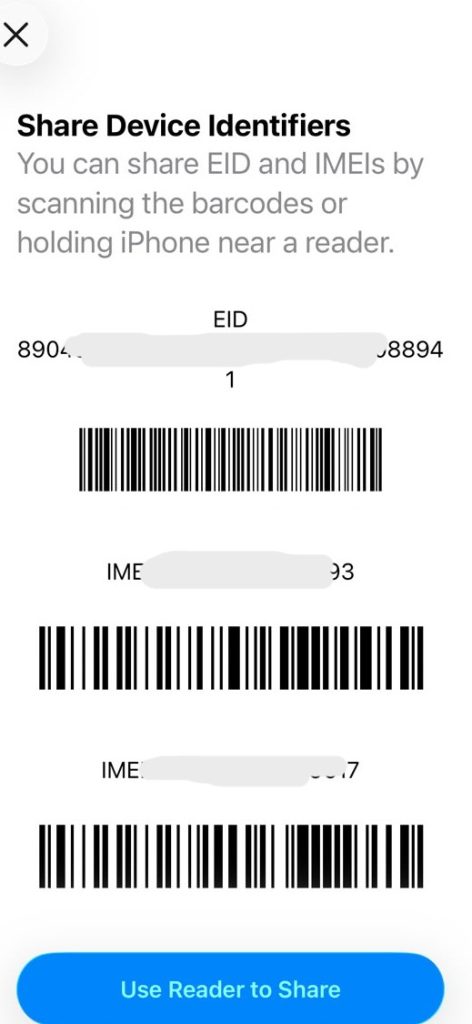
This is a quick first check. It is not the final word. Confirm your exact model and region with the phone maker. Here is what to know:
- iPhone: Apple says eSIM works on iPhone XS, XS Max, XR and later. iPhones sold in mainland China are an exception. Check Apple’s eSIM page for your model.
- Android: Many Samsung Galaxy S and Z phones and Google Pixel phones support eSIM. Many budget phones don’t. That includes some Tecno, Infinix and itel models.
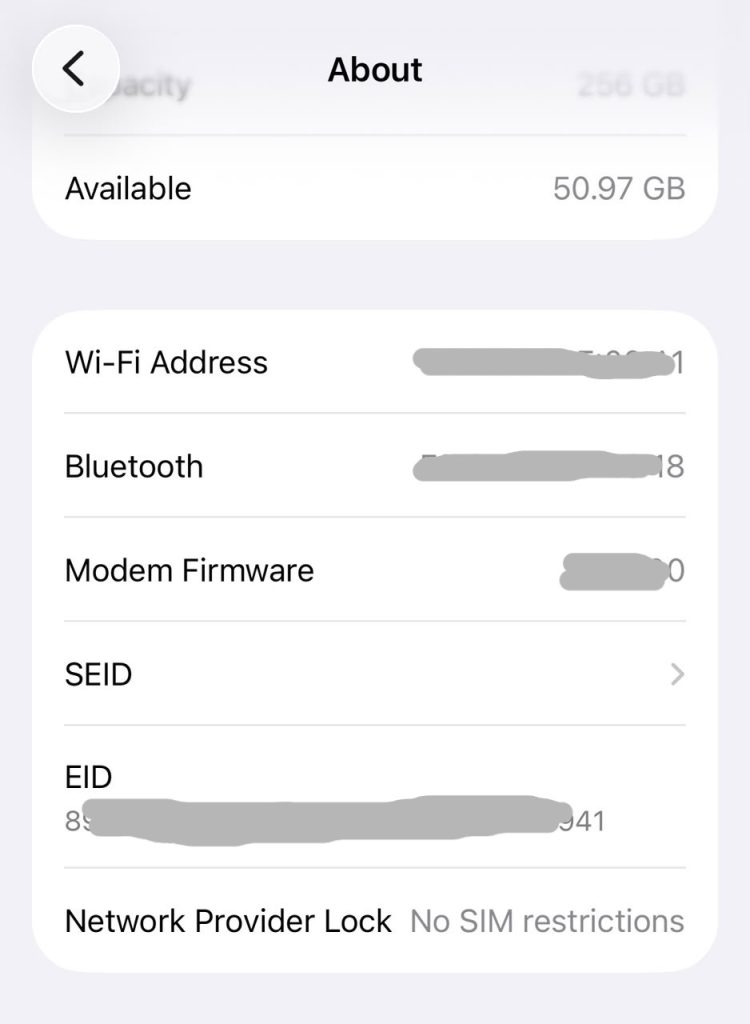
- Carrier lock: On iPhone, go to Settings → General → About. Look for Carrier Lock. On Android, ask your network if the phone is unlocked.
Want model-by-model detail? Read our guide: Does My Phone Support eSIM?
How to Install eSIM on Android
Android phones don’t share one menu. Samsung and Pixel use different paths. Other brands differ again. Here is how to install eSIM on each, so follow the steps for your phone.
This matters in Nigeria. Statcounter’s October 2026 data puts Android at about 87% of mobile web use there. So many readers will use this section.
How to Install eSIM on Samsung Galaxy
On a Samsung Galaxy, go to Settings, then Connections, then SIM manager. Tap Add eSIM and choose Scan QR code. Point your camera at the provider’s code. Follow the prompts. Then check that the new eSIM shows in SIM manager.
- Connect to Wi-Fi.
- Open Settings.
- Tap Connections.
- Click on SIM manager.
- Tap Add eSIM.
- Tap Scan QR code. Some phones say “Scan QR code from service provider.”
- Point the camera at the QR code. Tap Add if asked.
- Follow the prompts. Some models ask you to restart.
- Open SIM manager again. Check that the new eSIM is in the list.
Some Galaxy phones use different words. You may see SIM card manager and Add mobile plan. The steps are the same. Samsung also explains this on its eSIM support page.
How to Install eSIM on Google Pixel
On a Google Pixel, open Settings, then Network & internet, then SIMs. Tap Add SIM. Choose Set up an eSIM. Scan the QR code and follow the prompts. Then check that the eSIM appears in your SIM list.
- Connect to Wi-Fi.
- Open Settings.
- Tap Network & internet.
- Tap SIMs.
- Click on Add SIM (or the + icon).
- Tap Set up an eSIM. If Pixel asks you to insert a SIM card, tap Download a SIM instead?
- Scan the QR code. Tap Download when asked.
- Go back to SIMs. Check that the new eSIM is listed.
Google explains the same steps in the Pixel Phone Help Center.
How to Install eSIM on Other Android Phones
Xiaomi, Oppo, Motorola, OnePlus and other brands put the eSIM option in different places. Don’t assume it matches Samsung or Pixel.
Try this:
- Open Settings and look for SIM cards, SIMs, Mobile network or Connections.
- Look for Add eSIM, Add SIM or Add mobile plan.
- Use the search bar in Settings. Type “eSIM.”
- Still stuck? Check your phone maker’s support page for your exact model.
If you can’t find any eSIM option, your phone may not support it. Go back to the *#06# check above.
How to Install eSIM on iPhone
On an iPhone, open Settings and tap Cellular (or Mobile Service). Tap Add eSIM, then choose Use QR Code. Scan the code from your provider. Follow the prompts. Enter a confirmation code if your provider asks for one.
- Connect to Wi-Fi.
- Open Settings.
- Tap Cellular (or Mobile Service).
- Tap Add eSIM. Older versions may say Add Cellular Plan.
- Click on Use QR Code.
- Scan the QR code from another screen or a printout.
- Tap Continue, then Add Cellular Plan when asked.
- Enter the confirmation code if you’re asked for one.
- Wait for the install to finish. Your iPhone may ask you to name the line. Try “Travel Data.”
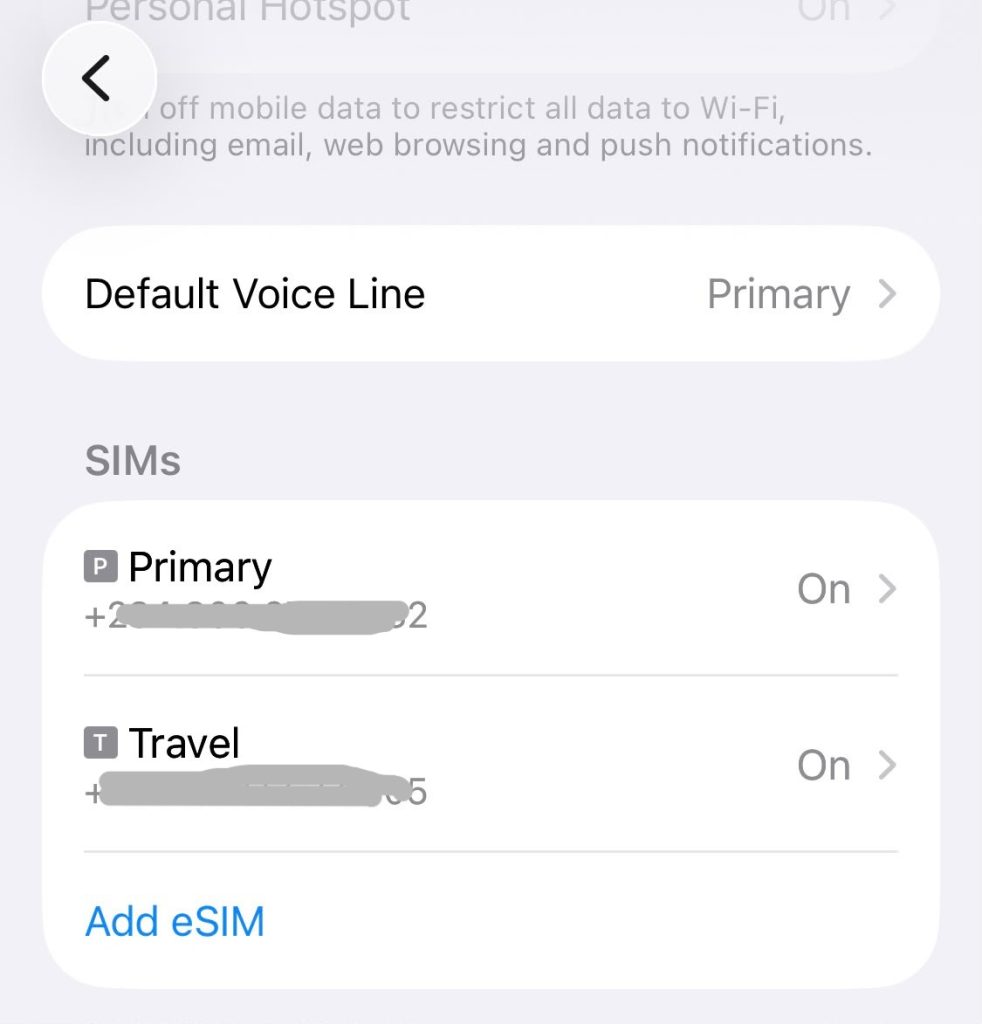
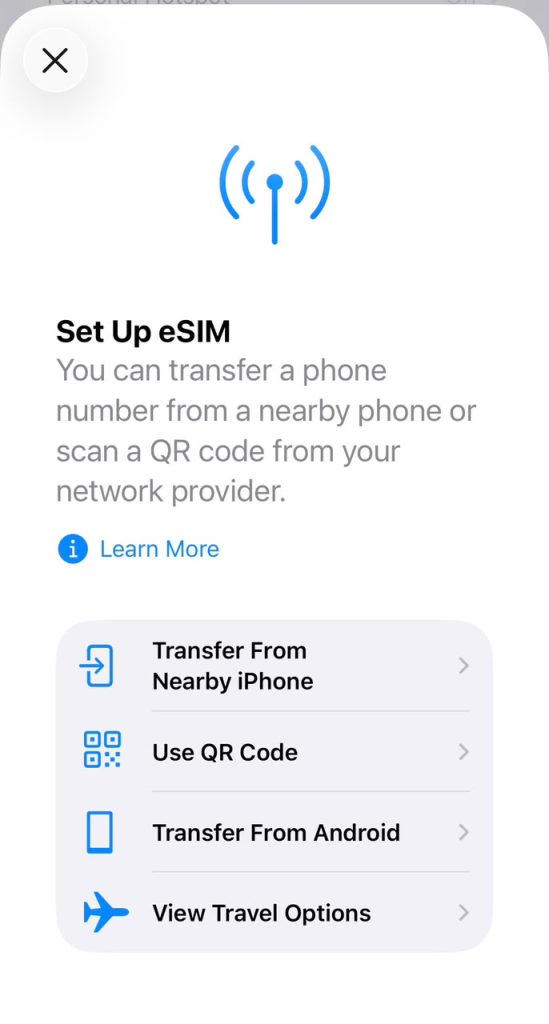
You can also open the Camera app and scan the code. Tap Cellular Plan Detected when it pops up. Apple lists every method on its eSIM setup page.
How to Install eSIM When the QR Code Is on the Same iPhone
Here is a common trap. You buy your eSIM on your phone. The QR code arrives by email on that same phone. You can’t scan your own screen. What now?
You have five options:
- Tap and hold the code. On iOS 17.4 or later, press and hold the QR code in an email or browser. Then tap Add eSIM.
- Use the provider’s app. Some providers let you install with one tap.
- Use a provider link. On iOS 17.4 or later, tap the link. Then tap Allow and Continue.
- Enter the details by hand. On the Use QR Code screen, tap Enter Details Manually at the bottom.
- Borrow a second screen. Show the code on a laptop, tablet or friend’s phone.
Don’t count on saving the code as a screenshot and picking it from Photos. That doesn’t work on every phone. Some Android phones let you upload a picture of the code on the scan screen. Many don’t.
How to Install eSIM Without a QR Code
To install eSIM without a QR code, choose manual entry in your phone’s eSIM menu. Type the SM-DP+ address and the activation code from your provider. Add a confirmation code if asked. Then follow the prompts to finish.
Two terms need a quick explanation:
- SM-DP+ address: the server address your phone uses to download the eSIM profile.
- Activation code: the code that tells that server which eSIM to send you.
Where to find manual entry:
- iPhone: Settings → Cellular → Add eSIM → Use QR Code → Enter Details Manually.
- Samsung: Settings → Connections → SIM manager → Add eSIM → Scan QR code → Enter activation code.
- Pixel: Settings → Network & internet → SIMs → Add SIM → on the scan screen, tap Need help? and choose to enter it manually.
Then type in the details exactly as your provider shows them. Add the confirmation code if you get a prompt. Tap Continue and wait.
If you use an EverTry eSIM, the easiest route is the app. Open your eSIM and tap Install now. Then follow the prompts. Prefer to do it by hand? You can scan the QR code from another phone or screen, or enter the details manually.
Two warnings. First, only your provider can give you these details. You can’t make your own. Second, treat your QR code like a password. Many codes work only once. Don’t share them.
How to Activate eSIM After Installation
You now know how to install eSIM. This next step is the one many people miss.
Think of an app. Downloading it is one job. Opening it and signing in is another. An eSIM works the same way. A finished install means the profile is on your phone. Your phone still has to use it.
Follow these steps after the install:
- Turn the eSIM line on.
- Name the line. Something clear, like “Travel Data.”
- Pick it for mobile data. This tells your phone which SIM supplies the internet.
- Turn on data roaming for the eSIM line. Do this if your provider says it’s needed.
- Check the network. Wait for signal bars. If none appear, toggle airplane mode on and off.
- Add an APN only if your provider tells you to. An APN is a setting that links your phone to the network’s internet service.
- Test it. Turn Wi-Fi off. Open a web page.
Here is where to find these settings:
- iPhone: Settings → Cellular. Tap your eSIM and switch the line on. Under Cellular Data, choose the eSIM. Tap the eSIM again and switch on Data Roaming.
- Samsung: Settings → Connections → SIM manager. Switch the eSIM on. Under Mobile data, choose the eSIM. Then go to Settings → Connections → Mobile networks and switch on Data roaming.
- Pixel: Settings → Network & internet → SIMs. Tap the eSIM. Switch on Use SIM, Mobile data and Roaming.
Watch out for roaming charges. Turn data roaming on for the travel line only. Keep it off on your home SIM. Otherwise your home network may bill you.
Some of this is the same everywhere. Some depends on the provider. Roaming and APN rules are provider choices. EverTry eSIM is data only, with no calls or SMS. Your home SIM handles those. When you arrive, turn on data roaming for the eSIM line.
When Should You Install Your Travel eSIM?
It depends on your provider’s rules. The key question is when your plan’s clock starts. Some plans start at install. Others start at first connection. Some start on a set date. Read the plan details before you install.
Knowing how to install eSIM early has one big plus. Your home Wi-Fi is steady. Airport and hotel Wi-Fi can be slow or full. A failed download at the airport is no fun.
Picture this. Tolu flies from Lagos to London. She installs her eSIM on her home Wi-Fi the night before. At Heathrow, she turns on data roaming for the eSIM. Maps opens at once.
Before you leave home, check these:
- Does your plan start at install, first connection or a set date?
- Is the install finished? Look for the eSIM in your SIM list.
- Is your QR code saved safely? Don’t share it.
- Do you know how to reach your provider’s support?
With EverTry eSIM, buying a plan doesn’t start the clock. Your days start when you install it and first connect. We suggest installing at home, on Wi-Fi, a day or two before you travel. Then turn on data roaming for the eSIM when you land. See how the plan days work.
Wondering how this compares with your network’s roaming? Read eSIM vs International Roaming in Nigeria.
When you land:
- Turn off airplane mode.
- Switch the eSIM line on.
- Choose it for mobile data.
- Turn on data roaming for that line.
- Wait for signal bars, then test a web page.
Common eSIM Installation Problems and How to Fix Them
Most problems have a simple cause. Find yours in this table.
| Problem | Possible reason | What to do |
|---|---|---|
| QR code won’t scan | Blurry code, dim screen or camera issue | Raise screen brightness and hold steady. Or use manual entry |
| QR code is on the same phone | No second screen | Use the app, tap and hold (iOS 17.4+) or manual entry |
| Code says “already used” | The eSIM may already be on your phone, or the code works once | Check your SIM settings. Then contact your provider |
| Add eSIM is missing | Unsupported model, carrier lock or old software | Check *#06#, your exact model and lock status. Update your software |
| Phone says eSIM isn’t supported | Your model or region lacks eSIM, or the phone is locked | Confirm the model with the maker. Ask your network to unlock it |
| Install gets stuck | Weak internet | Move to steady Wi-Fi. Wait a few minutes. Retry only as your provider says |
| eSIM installed but no internet | Line off, wrong data SIM or roaming off | Turn the line on. Pick it for mobile data. Turn on roaming for that line |
| No signal abroad | The plan may not cover that network or country | Check coverage. Toggle airplane mode. Try picking a network by hand |
| eSIM disappeared | It may have been deleted or removed | Contact your provider. Many eSIMs can’t be put back |
What to Do If Your eSIM Still Doesn’t Work
Go through this list in order:
- Is the eSIM line switched on?
- Is the eSIM chosen for mobile data?
- Have you turned data roaming on for that line?
- Does your plan cover where you are?
- Have you restarted your phone or toggled airplane mode?
- Did your provider ask you to add an APN? If so, enter it exactly.
- Still no luck? Contact your provider. Send a screenshot, but hide the QR code and codes.
Never delete an eSIM to try to fix it. Many codes work only once. If you delete the eSIM, you may need a brand new one. Always ask your provider first.
Apple has more tips on its eSIM troubleshooting page.
Can You Use Your Regular SIM and an eSIM Together?
Yes, on most dual SIM phones. This is great news if you want to keep your Nigerian number. Banks send codes by text. Friends reach you on WhatsApp. You also want cheap data abroad.
Here is a simple set-up:
- Keep your home SIM for calls and texts.
- Use the eSIM for mobile data.
- Turn data roaming on for the eSIM only.
- Keep data roaming off on your home SIM.
EverTry eSIM is data only. So your home SIM keeps handling calls and SMS, including bank codes. WhatsApp keeps working on your usual number over your eSIM data. Your home network’s roaming rates still apply to anything you use on that line.
Dual SIM features differ by phone. Some phones let you pick a line for each call. Others don’t. Check your phone’s SIM settings to see what yours offers.
Frequently Asked Questions
How do I set up an eSIM?
Connect to Wi-Fi. Open your SIM settings and tap Add eSIM. Scan the QR code from your provider, or enter the details by hand. Follow the prompts. Then turn the line on and select it for mobile data.
Can I add an eSIM myself?
Yes, if your phone supports eSIM and is unlocked. You need the QR code, app or details from your provider. You don’t need a shop visit. Some network eSIMs do need the network to send the code first.
How to install eSIM in a phone?
Open your SIM settings. That is Cellular on iPhone, SIM manager on Samsung and SIMs on Pixel. Tap Add eSIM or Add SIM. Scan the code or use manual entry. Then switch the eSIM on.
How do I set up an eSIM on my phone?
First, check that your phone supports eSIM by dialing *#06#. Then install the eSIM over Wi-Fi. Finally, turn on the line, pick it for mobile data and test it with Wi-Fi off.
How do I know if my phone supports eSIM?
Dial *#06#. If an EID number shows, your phone likely supports eSIM. Then confirm your exact model and region with the phone maker. Also make sure the phone is unlocked.
Do I need Wi-Fi to install an eSIM?
You need an internet connection to download the profile. Wi-Fi is the safest choice. If the download fails, switch to a steady Wi-Fi network and try again as your provider advises.
Can I install an eSIM without a QR code?
Yes, if your provider gives you manual details. Choose manual entry in your eSIM menu. Type the SM-DP+ address and activation code. Some providers also offer an app or a link instead.
Can I install an eSIM using the same phone?
Yes. On iPhone with iOS 17.4 or later, tap and hold the QR code in an email or browser. Then tap Add eSIM. You can also use the provider’s app, a link or manual entry.
Can I install an eSIM before travelling?
Often yes, but check your provider’s rules. Some plans start the clock at install. Others start at first connection or on a set date. Read the plan details before you install.
Does installing an eSIM activate it automatically?
Not always. Installing adds the profile to your phone. You may still need to switch the line on, choose it for mobile data and turn on roaming. Your plan’s start rules also apply.
Can I use an eSIM on a locked phone?
Usually not. A phone locked to one network can block eSIMs from other providers. Ask your network to unlock the phone before you buy a plan.
Can I use my physical SIM and eSIM together?
Yes, on dual SIM phones. Keep your physical SIM for calls and texts. Use the eSIM for mobile data. Turn data roaming on for the eSIM line only. Features vary by phone.
What if my eSIM QR code says it has already been used?
Many codes work only once. Check your SIM settings first, because the eSIM may already be on your phone. If it isn’t, contact your provider before you delete or retry anything.
Can I move my eSIM to another phone?
It depends on your provider. Some can issue a new profile. Many can’t reinstall a deleted eSIM. Ask your provider before you switch phones or reset your old one.
Why is my eSIM not working after installation?
Check four things. Is the line on? Is it set for mobile data? Does the line have data roaming on? Does the plan cover your location? If all four are yes, contact your provider.
Get Your Travel eSIM With EverTry
Phone checked? Then you’re ready to get connected. You can pick plans for 100+ countries. Each plan shows its data, days, coverage and price before you pay.
You pay from your wallet with local currency, USDT, USDC or Bitcoin. For a rough idea of cost, UK plans started from $2.70 on 18 November 2026. Prices change by country and plan.
To buy, open the app. Tap Lifestyle, then eSIMs, then pick your destination. After you buy, open your eSIM and install it with the steps above.
Going somewhere specific? Read our guides on eSIM for the UK from Nigeria and eSIM for Dubai from Nigeria.
This article is for general information. Plans, prices, coverage and phone support can change, and network providers set their own terms. EverTry is a fintech company, not a bank.
Deborah Giwa is a Marketing Associate at EverTry, where she works on content and growth initiatives focused on helping users navigate international payments. She is passionate about simplifying access to global financial tools for people in emerging markets through clear, practical, and user-focused content.