
If you want to cancel your GitHub Copilot subscription in Vietnam, you can do it in under two minutes. Go to Settings → Billing & licensing → Licensing → GitHub Copilot → Manage subscription → Cancel subscription. You’ll keep your Pro features until your current billing cycle ends; GitHub doesn’t cut you off the moment you click cancel.
This guide walks you through the exact steps, tells you what happens to your billing and access after you cancel, and covers refunds, verification, and troubleshooting. We’ll also cover something worth knowing before you cancel: if you’re doing this because your Vietnamese card keeps getting declined (not because you actually want to stop using Copilot), there’s a simpler fix than walking away from the tool.
One quick note: GitHub Copilot is not Microsoft Copilot. They’re different products from different teams, with different billing pages.
Quick answer: How do you cancel your GitHub Copilot subscription in Vietnam?
Sign in to GitHub, then go to Settings → Billing & licensing → Licensing → GitHub Copilot → Manage subscription → Cancel subscription, and confirm. Your access stays active until your current billing period ends, then your account drops to Copilot Free. This works the same way from Vietnam as it does anywhere else. It’s all handled through your GitHub account, not through a local payment provider.
How to cancel your GitHub Copilot subscription in Vietnam: Step-by-step
1. Sign in to your GitHub account
Use the personal account that’s paying for Copilot Pro; not a work or school account, and not a GitHub organization account. If you’re not sure which one has the subscription, check your email for GitHub’s billing receipts.
2. Open your GitHub billing settings
Click your profile picture in the top-right corner, then click Settings. In the left sidebar, under the “Access” section, click Billing & licensing.
3. Find GitHub Copilot under your plans
Click Licensing. You’ll see a “GitHub Copilot” section showing your current plan: Pro, Pro+, or Max.
4. Select Manage subscription
On the right side of the Copilot section, click the Manage subscription dropdown.
5. Select Cancel subscription and confirm
Click Cancel subscription, then confirm your plan (Copilot Pro, Pro+, or Max). GitHub will show an on-screen confirmation and send you a confirmation email. Save both.
That’s it. Your card won’t be charged again once the current cycle ends.
What happens after you cancel GitHub Copilot Pro?
Canceling doesn’t switch anything off right away. Your paid access keeps working until the end of the billing period you already paid for. When that period ends, you’re automatically moved to Copilot Free instead of losing GitHub entirely.
Here’s what stays the same and what changes:
- Your GitHub account itself is untouched; repos, code, everything stays.
- Your Copilot Pro features (chat, agent mode, premium models) keep working until the cycle ends.
- You won’t be charged again after the cancellation goes through.
- Once the cycle ends, you drop to Copilot Free, which still gives you basic code completions, just with lower limits.
Does canceling GitHub Copilot Pro stop it immediately?
No. Canceling stops the renewal, not the current period. Think of it like canceling a gym membership mid-month; you paid for the month, so you keep going until it runs out. GitHub works the same way: you keep Pro access through the end of your paid cycle, then it quietly stops renewing.
Can you get a refund after canceling GitHub Copilot Pro?
Sometimes, but don’t assume it’s automatic. A plain cancellation just stops future charges; it doesn’t refund the time you’ve already paid for. If you want money back for unused time, you’ll need to contact GitHub Support directly (support.github.com/contact → Billing & Payments → Copilot) and ask. GitHub’s support flow has, at times, let users request “Cancel and refund” directly from the same billing menu; but this option has changed over time, so check what’s currently available on your account before assuming it’ll be there. Don’t count on a refund as your backup plan; treat it as a bonus if it happens.
How to check if your GitHub Copilot Pro subscription is canceled
Once you’ve canceled, it’s worth double-checking. A lot of readers ask “did that actually work?” Here’s how to confirm it:
- Go back to Settings → Billing & licensing → Licensing.
- Look at the GitHub Copilot section. It should now show your access end date instead of a renewal date.
- Check your email for GitHub’s cancellation confirmation.
- Screenshot the confirmation screen or save the email. This is useful if you ever need to dispute a charge with your bank.
Canceling vs. disabling vs. uninstalling GitHub Copilot
These three things sound similar but do completely different jobs. Mixing them up is the single biggest reason people think they’ve canceled when they haven’t.
| Action | What it actually does |
|---|---|
| Cancel subscription | Stops future billing on GitHub’s side |
| Disable Copilot | Turns Copilot off inside VS Code or another editor, but keeps billing you |
| Uninstall the extension | Removes the extension from your editor, but keeps billing you |
Uninstalling GitHub Copilot does not cancel GitHub Copilot Pro. Your subscription lives on GitHub’s billing page, not on your laptop. If you delete the extension and stop there, GitHub will keep charging your card every month.
Why can’t I find the option to cancel GitHub Copilot Pro?
If the Cancel subscription button isn’t showing up for you, it’s usually one of these four things:
Your GitHub interface looks different. GitHub has changed its billing layout more than once in 2026. If your sidebar says “Billing and plans” instead of “Billing & licensing,” look for “Plans and usage” instead of “Licensing”; same destination, older label.
Copilot is provided by your employer or organization. If your company or school assigned you a Copilot seat, you can’t cancel it from your personal settings. You’ll need to ask whoever manages your organization’s GitHub account to remove your seat.
You already canceled it. Check your billing page; if it already shows an access end date instead of “Manage subscription,” you’re done. No need to cancel again.
You have access through a different benefit. Verified students and some open-source maintainers get Copilot Pro for free through GitHub’s education or open-source programs. That access follows different rules than a paid personal subscription.
What if you’re trying to cancel because your GitHub Copilot payment keeps failing?
Here’s something worth pausing on before you finish canceling: not everyone who searches “cancel GitHub Copilot Pro” actually wants to leave. A lot of people land here because their card got declined, they got frustrated, and canceling felt like the only way to stop the headache.
There are really two different situations, and they need two different fixes:
You genuinely don’t want Copilot anymore. Fine; the steps above are all you need.
You still want Copilot, but your card won’t cooperate. If that’s you, canceling doesn’t actually solve your problem. It just removes the tool you were trying to pay for. What you need instead is a payment method that Stripe (GitHub’s payment processor) will actually accept.
Why might a Vietnamese card be declined for GitHub Copilot Pro?
A decline doesn’t mean you’re short on money. In most cases, it means the card itself isn’t set up the way Stripe needs it to be for a recurring international USD charge. Common reasons include:
- Your bank hasn’t enabled international or e-commerce transactions on the card by default.
- Your bank restricts recurring (auto-renewing) charges specifically.
- Your card is a domestic-only card tied to Vietnam’s NAPAS network, which doesn’t work on Visa/Mastercard international rails at all.
- Stripe’s own risk checks flag the card’s issuing bank, independent of your balance or your bank’s settings.
That last one is the one people miss. A card can be valid, funded, and fully approved for international payments by your bank, and still get declined, because the card issuer itself is flagged on Stripe’s end. If that’s what’s happening, calling your bank again usually won’t fix it, because your bank didn’t cause it.
Can you pay for GitHub Copilot Pro with MoMo, ZaloPay, or VNPay?
Can you pay with MoMo? No. GitHub Copilot only bills through Stripe, and Stripe doesn’t support MoMo.
Can you pay with ZaloPay? No, for the same reason. Copilot’s billing runs entirely on Visa/Mastercard through Stripe.
Can you pay with VNPay? No. VNPay is a domestic payment rail, and GitHub doesn’t connect to it.
What does GitHub Copilot Pro actually require? A Visa or Mastercard that can process a recurring USD charge internationally. MoMo, ZaloPay, and VNPay are excellent for Vietnamese e-commerce and bill payments, but they’re not built for billing a US-based SaaS company like GitHub. You’ll need an international card layered on top, if your only payment tools are local wallets, .
If you want to keep GitHub Copilot Pro: Use EverTry to pay
You probably don’t need to cancel at all, if you’re not trying to cancel your Github Copilot subscription in Vietnam because you dislike Copilot, but because your card won’t go through. You need a card built to pass Stripe’s international checks in the first place.
EverTry gives you a virtual USD card you can fund directly from Vietnam, using either VND or USDT/USDC. It’s built specifically for paying international subscriptions and services like this one, so it’s designed to clear the exact checks that trip up ordinary domestic cards. It won’t guarantee every payment goes through everywhere; no card can promise that; but it gives you a real second option instead of giving up on Copilot altogether.
How to pay for GitHub Copilot Pro with EverTry
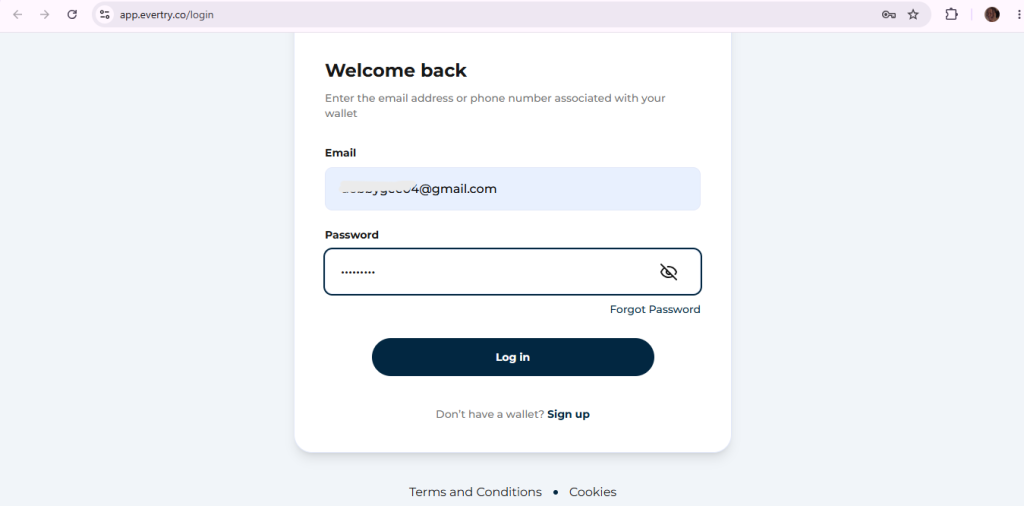
1. Create your EverTry account
Sign up with your email and basic details. Takes a couple of minutes.
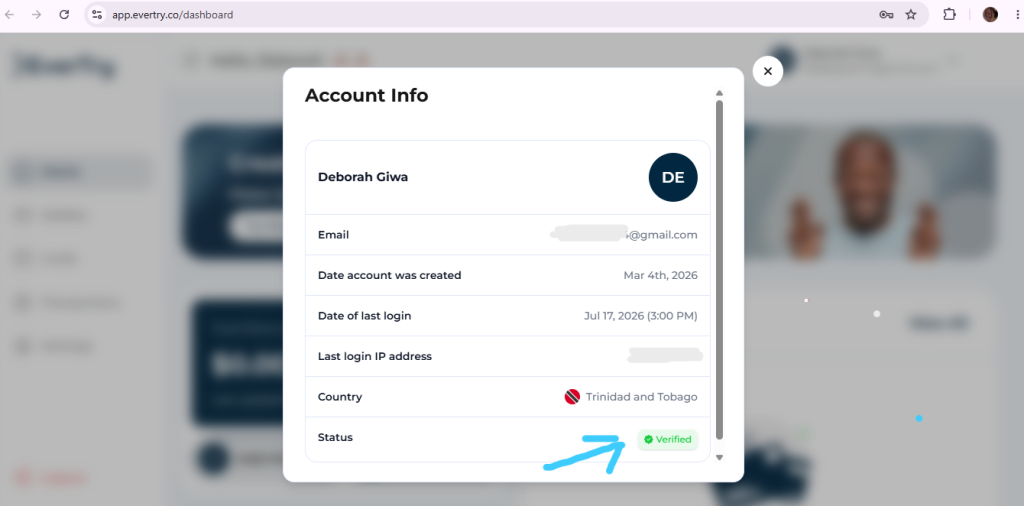
2. Complete KYC
Verify your identity with a government ID. This is a standard step for any regulated card provider, and it’s usually quick.
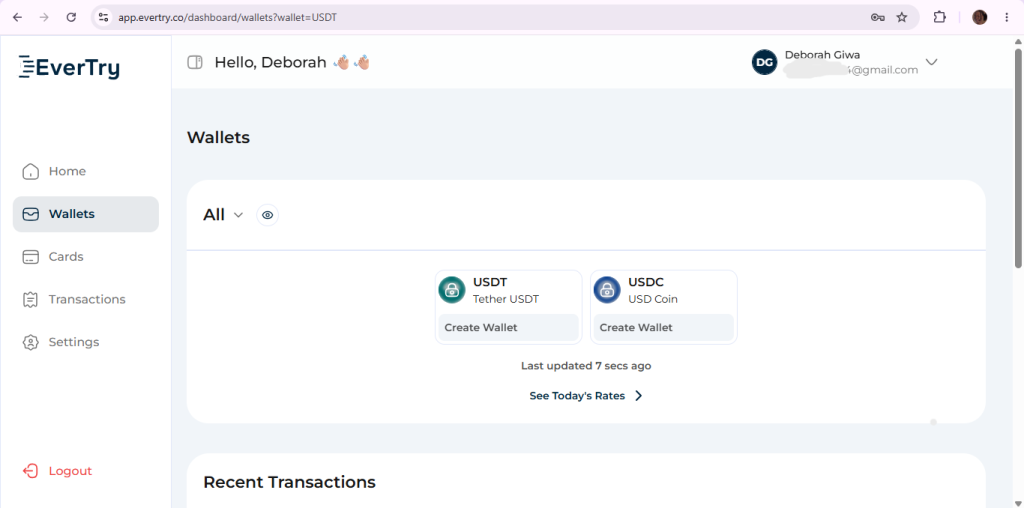
3. Fund your EverTry wallet
Add money using VND or USDT/USDC; whichever funding method is available to you.
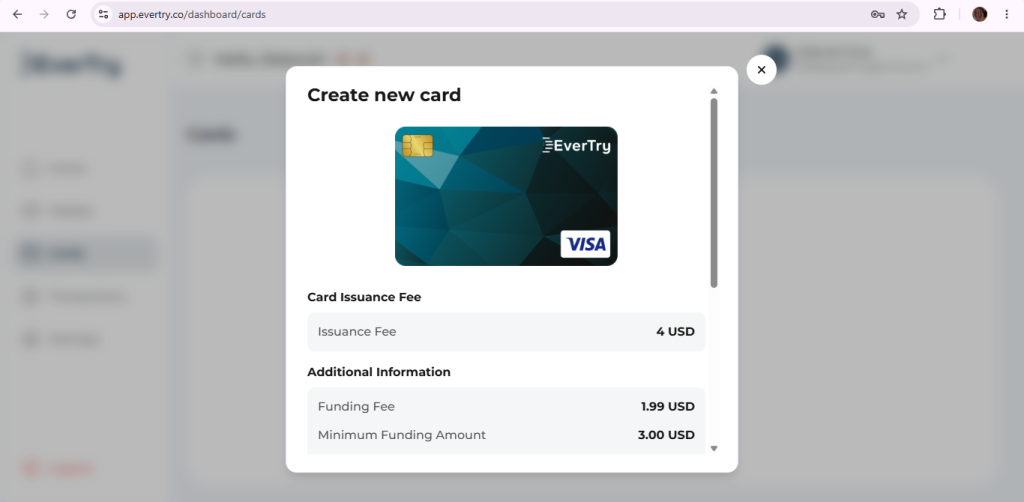
4. Create your virtual dollar card
Generate a USD virtual card inside the app. No bank branch visit, no waiting days for a physical card to arrive.
5. Add the card to GitHub’s billing page
Go back to Settings → Billing & licensing → Licensing, and enter your new card details when you subscribe or update payment. Confirm the subscription, and you’re set.
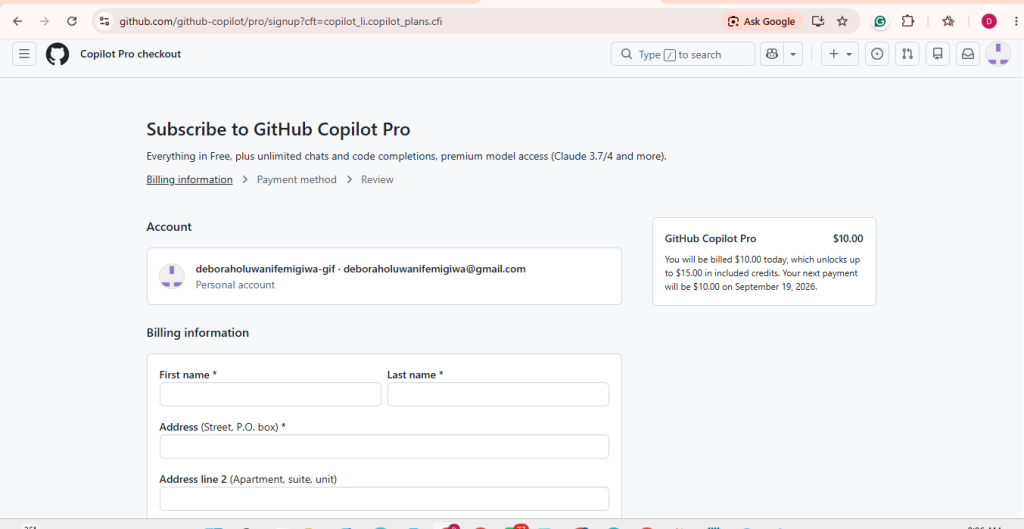
Start to finish, this usually takes under 15 minutes; and you don’t need to ask a friend abroad to pay on your behalf or route the payment through someone else’s account.
Frequently Asked Questions
How do I cancel GitHub Copilot Pro in Vietnam?
Go to Settings → Billing & licensing → Licensing → GitHub Copilot → Manage subscription → Cancel subscription, then confirm. It works the same from Vietnam as anywhere else.
Does GitHub Copilot Pro stop immediately after cancellation?
No. You keep access until your current billing cycle ends, then you’re moved to Copilot Free.
Will GitHub charge me again after I cancel?
No. Once you cancel, the subscription won’t renew, so no future charges go through.
Can I get a refund after canceling GitHub Copilot Pro?
Sometimes, but it isn’t automatic. Contact GitHub Support and ask. Don’t assume unused time will be refunded on its own.
Does uninstalling GitHub Copilot cancel the subscription?
No. Uninstalling only removes the extension from your editor. Billing continues until you cancel it from your GitHub account settings.
Why is my Vietnamese card being declined by GitHub Copilot?
Usually because the card isn’t enabled for international or recurring charges, it’s a domestic-only NAPAS card, or Stripe’s risk system flags the issuing bank; not because you’re short on funds.
Can I pay for GitHub Copilot Pro with MoMo, ZaloPay, or VNPay?
No. GitHub Copilot only accepts Visa/Mastercard through Stripe, not local Vietnamese wallets.
Can I use a Vietnamese Visa or Mastercard for GitHub Copilot Pro?
Sometimes. It depends on whether your bank has international and recurring payments enabled, and whether Stripe accepts that specific issuer.
How much does GitHub Copilot Pro cost in Vietnam?
$10/month, billed in USD. GitHub doesn’t offer separate VND pricing.
Can I use EverTry to pay for GitHub Copilot Pro?
Yes. EverTry issues a virtual USD card you fund with VND or USDT/USDC, built for exactly this kind of international subscription payment.
GitHub Copilot có hỗ trợ MoMo không?
Không. GitHub Copilot chỉ thanh toán qua Stripe bằng thẻ Visa hoặc Mastercard, không hỗ trợ MoMo, ZaloPay hay VNPay.
Final takeaway: Cancel Copilot, or fix the payment?
If you genuinely want to leave: follow the five steps above, then double-check your subscription status on your billing page. You’re done in under two minutes.
If you actually want to keep Copilot, but your card is the problem: you don’t have to give up the tool. A payment method built for international subscriptions, like EverTry’s virtual dollar card, solves the actual issue instead of just removing the thing you were trying to pay for.
This article is for informational purposes only and reflects GitHub Copilot Pro pricing, payment options, and cancellation processes that may change over time. Always check GitHub’s official terms and billing policies for the latest information. EverTry is an independent payment service and is not affiliated with or endorsed by GitHub. Payment success may vary by merchant, card issuer, and transaction.
Deborah Giwa is a Marketing Associate at EverTry, where she works on content and growth initiatives focused on helping users navigate international payments. She is passionate about simplifying access to global financial tools for people in emerging markets through clear, practical, and user-focused content.